Systweak VPN
  • Home
  • Features & Benefits

    Browse Anonymously Access Blocked Websites Unlimited Streaming Hide IP Address
  • How it Works

    What is VPN? Why use VPN? FAQ's
  • Learn More

    Unblock Spotify VPN VPN For Facebook Access Wikipedia VPN VPN For Google VPN For Hulu VPN For Amazon Prime VPN For Twitter VPN For Netflix VPN For Instagram VPN For Disney Plus VPN For BBC iPlayer VPN For YouTube VPN For ESPN VPN For HBO
  • User Guide
  • Contact Us
BUY NOW
  • Introduction
  • Installation Guide
    • System Requirements
    • Download And Installation
    • Purchase Systweak VPN
    • Activate Systweak VPN
  • Features
    • Browse Anonymously
    • Access Blocked Websites
    • Unlimited Streaming
    • Hide IP Address
    • Military Grade Encryption
    • Kill Switch
    • Stealth Mode
    • DNS Leak Protection
    • Global Server Access
    • Bypass ISP Throttling
    • No Log Policy
  • User Interface
  • How To Use Systweak VPN
  • Frequently Asked Questions (FAQs)

Home / User Guide / How To Use Systweak VPN

How To Use Systweak VPN

Using Systweak VPN is simple. Once you install it and login using the details you have received on your e-mail, connecting to a server takes just a few clicks.

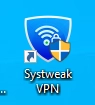
1. Launch Systweak VPN. Double-click the Systweak VPN icon on your desktop, or find it in your Start menu.
Systweak VPN

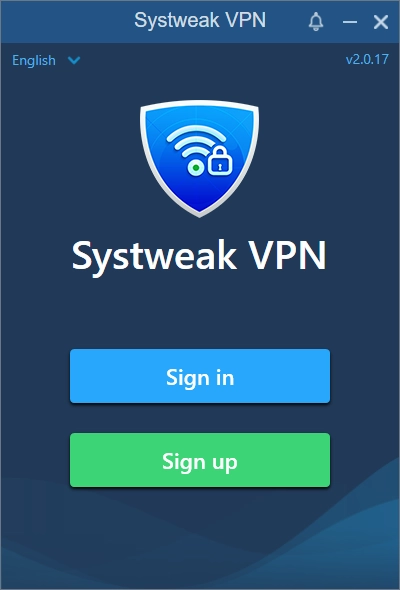
2. Click Sign in and enter your email address and password (these details were sent to you via email after purchase).
Systweak VPN

If needed, you can reset your password by clicking Forgot your password. Once signed in your product will be activated and you can connect to the servers.

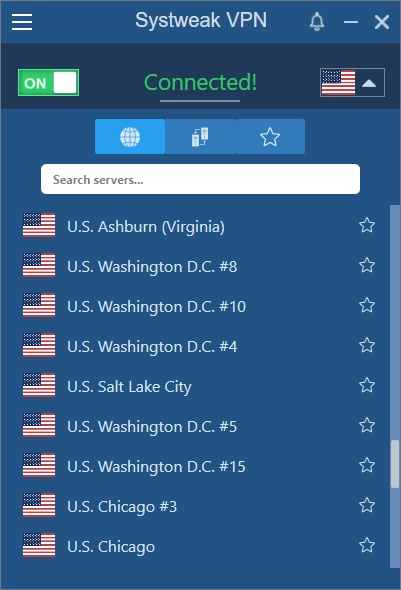
3. Now from the welcome screen select the server location. Click the Server List > browse through countries or search for a specific location. Choose the server based on your needs (Global, or P2P).
Systweak VPN

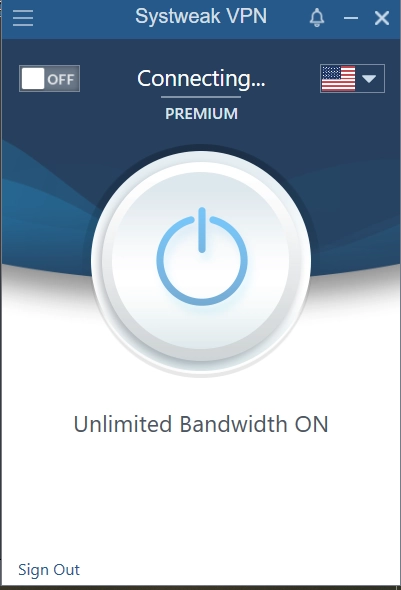
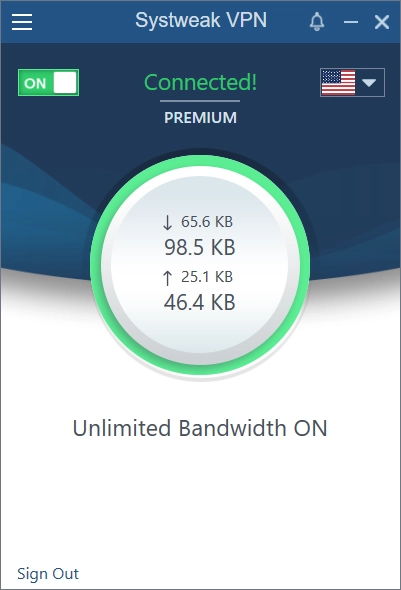
4. Connect to the VPN. On the main screen click the Connect button and wait for the connection to be initiated. In a few seconds, Systweak VPN will establish a secure connection.
Systweak VPN

5. You'll see the dashboard status change to Connected.
Systweak VPN

That's it! Now you can browse websites anonymously, stream shows and movies without geo-restrictions, use public Wi-Fi without worrying about hackers and do whatever you like without being tracked.

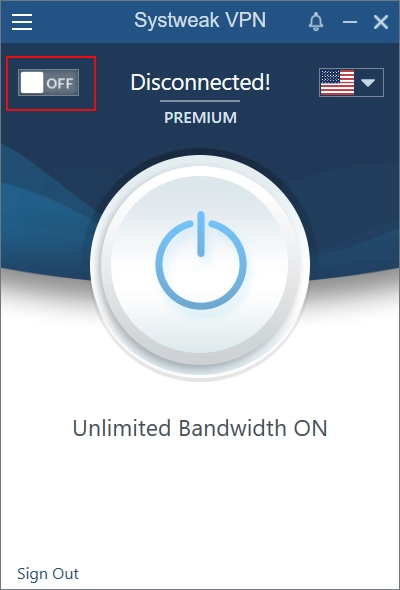
6. When you're finished, open Systweak VPN dashboard > click the power button to Disconnect. Your device will return to its normal internet connection.
Systweak VPN

Pro Tip: You can leave Systweak VPN running in the background if you're staying connected to public Wi-Fi.

Systweak vpn
  • Home
  • |
  • What is VPN?
  • |
  • Uninstall Instructions
  • |
  • Terms of use
  • |
  • Privacy Policy
  • |
  • Refund Policy
  • |
  • EULA

Microsoft and Windows are trademarks owned by Microsoft Corporation. Systweak Software is not affiliated, associated, authorized, endorsed by, or in any way officially connected with Microsoft or Windows in any manner. Mac and OSX are trademarks owned by Apple Inc. all across the US and other countries. Other trademarks also belong to their respective owners.

Copyright © 1999-2025 Systweak VPN. All Rights Reserved.