Home / User Guide / User Interface
User Interface
The interface of Systweak VPN is minimal and designed for ease of use. It gives quick access to all major functions. Here's a breakdown of every area:
1. Home Screen - Connection Dashboard
This is from where you connect to or disconnect from the VPN.
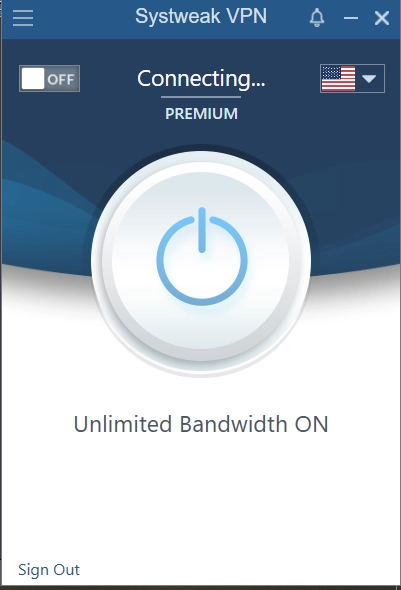
Key elements:
- Power Button (center): Click to connect the VPN.
- Connection Status: Shows states like Disconnected, Connecting, or Connected.
- Server Country Flag: Displays the current selected country (you can click to change).
- Unlimited Bandwidth: Indicator of the bandwidth speed.
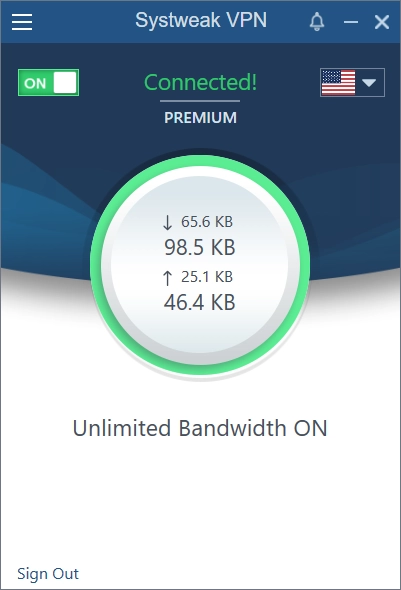
When connected, the power button turns green and displays real-time upload/download speed.
2. Server Selection Panel
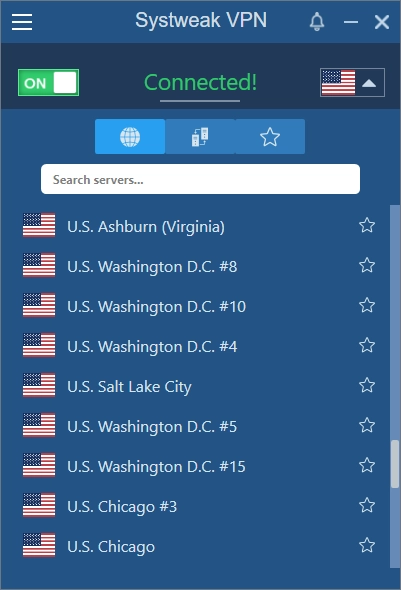
This is from where you can change the location. To access it click the drop down next to the country flag. You will now get a new window divided into three tabs -
- 🌐 Global - Lists VPN servers by country.
- 🔁 P2P Servers - Optimized for peer-to-peer file sharing or torrents.
- ⭐ Favorites - Your favorite servers are displayed here.
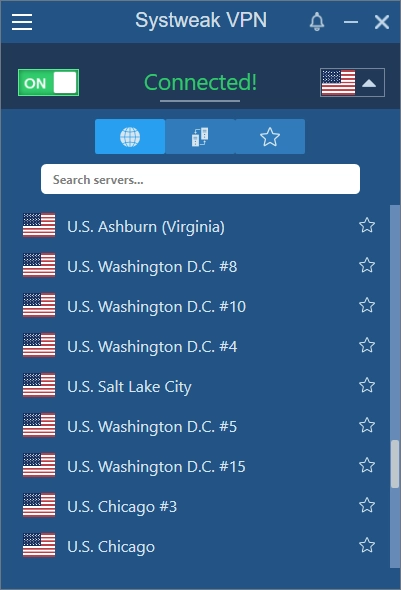
To add a server to favorites click the star icon to add/remove favorites.
3. Left-Side Menu (☰ Icon)
Clicking the hamburger menu opens a quick-access sidebar where you get following options:
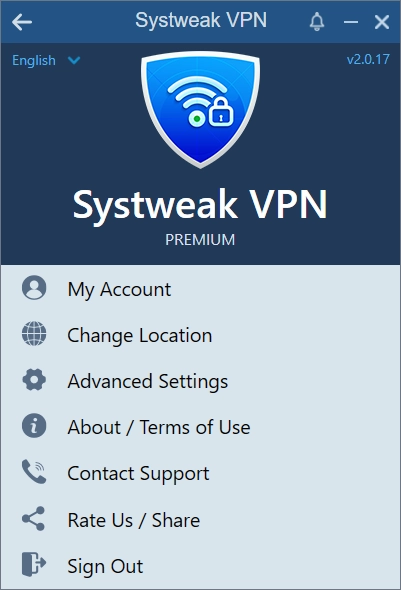
- My Account - View subscription info and manage your personal details.
- Change Location - Opens server selection window from where you can select the server.
- Advanced Settings - Custom VPN configuration.
- About / Terms of Use - App version and terms and conditions.
- Contact Support - Help and troubleshooting options.
- Rate Us / Share - Feedback and app sharing.
- Sign Out - Logout from your account.
4. My Account
When you click on it you will see the following details:
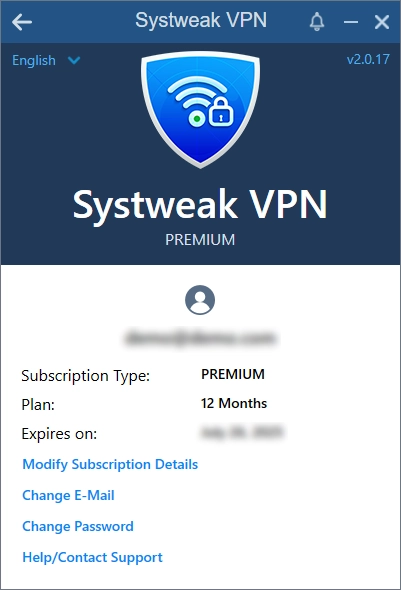
- Logged-in email address
- Subscription Type
- Plan
- Validity
- Links to Modify Subscription Details, Change E-mail, Change Password, and Help/Contact Support
5. Advanced Settings Panel
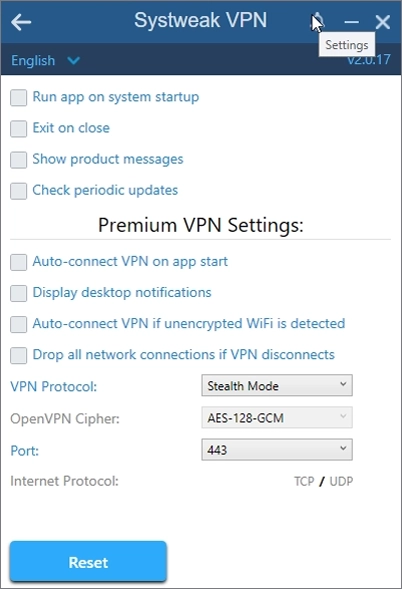
Here you will get the following options and can customize them to control how Systweak VPN runs:
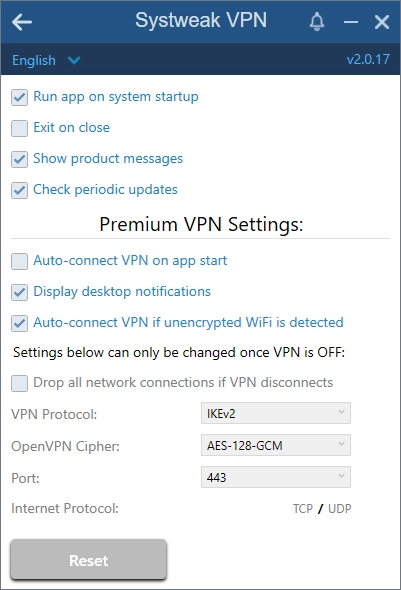
- Run app on system startup.
- Exit on close.
- Show product messages.
- Check periodic updates.
Premium VPN Settings
- Auto-connect VPN on app start.
- Display desktop notifications.
- Auto-connect VPN if unencrypted WiFi is detected.
Pro Tip: These settings are only changeable when VPN is disconnected.
- Drop all network connections if VPN disconnects.
- VPN Protocol switching: IKEv2, OpenVPN, Stealth Mode.
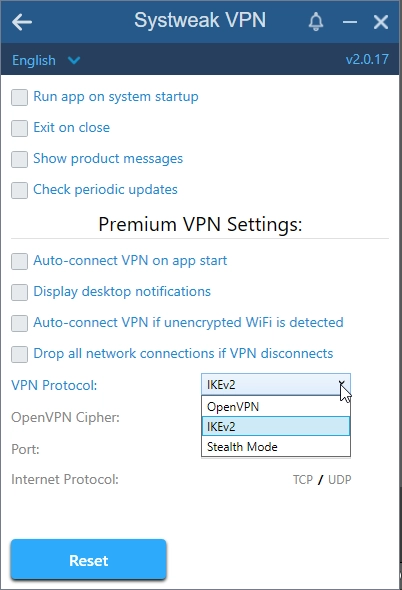
- OpenVPN ciphers: AES-128/256 GCM or CBC.
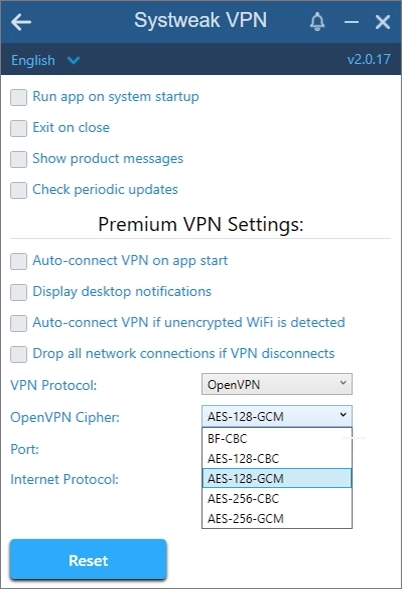
- Port & Internet Protocol (TCP/UDP).
6. App Tray Menu (Right-click System Tray Icon)
When you click the app icon in the system tray you get following options:
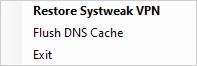
- Restore Systweak VPN
- Flush DNS Cache - Clear local DNS for privacy or troubleshooting.
- Exit - Close the app completely.
